Showing posts with label VPN. Show all posts

Thursday, February 13, 2014

Setup L2TP/IPSec VPN

The steup is based on setup pptp vpn.

Preshare key for Authentication -

Configure VPN1:
1. Routing and Remote Access -> Properties -> Security -> Allow custom IPSec policy for L2TP connection -> Preshare Key
2. Routing and Remote Access -> All Tasks -> Restart

Configure CLIENT1:
1. VPN Connection Properties -> Security -> Type of VPN (L2TP/IPSec) -> Advanced Settings -> Use Preshared Key for Authentication
2. Connect VPN


Certificate for Authentication -

Configure VPN1:
1. MMC -> Certificate -> Computer Account -> Local Computer
2. Certificate -> Personal -> All Tasks -> Request New Certificate
3. Next -> Certificate Enrollment -> Active Directory Enrollment Policy -> Computer -> Details -> Properties -> Private Key -> Key Options -> Make Private Key Exportable
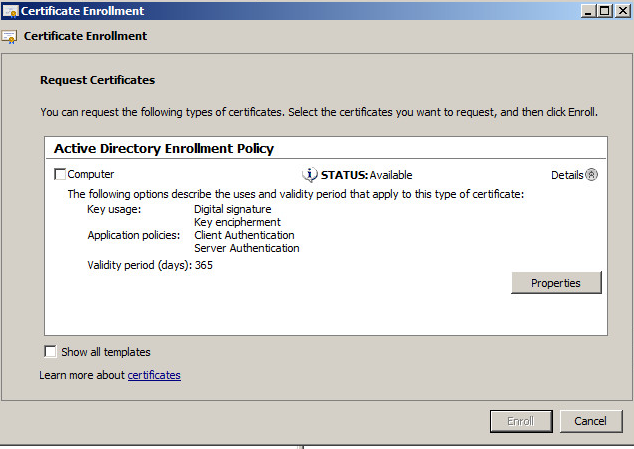


4. Routing and Remote Access -> All Tasks -> Restart

Configure CLIENT1:
1. Export the VPN Computer (with private keys) and CA Root certificate and import in CLIENT1. MMC -> Certificate ...
2. VPN Properties -> Security -> Advanced Settings of L2TP/IPSec -> Use Certificate for Authentication
3. Connect VPN


Setup PPTP VPN

Domain: contoso.com

DC1 - DC, DNS, DHCP
IP: 10.0.0.5/24
DNS: 10.0.0.5

VPN1 - VPN Server, DHCP Relay Agent
IP1: 10.0.0.14/24 (Internal)
DNS1: 10.0.0.5
DG1: N/A
IP2: 192.168.1.14/24 (Internet)
DNS2: N/A
DG2: 192.168.1.1

CLIENT1 - VPN Client
IP:192.168.1.13/24 (Internet)
DG: 192.168.1.1

Configure VPN1:
1. Join VPN1 to domain
2. Log on VPN1 with Domain Administrator
3. Add role Network Policy and Access Services -> Routing and Remote Access
4. Configure and Enable Routing and Remote Access
5. Remote Access (Dial-up or VPN) -> VPN
6. Select Internet Network Adapter
7. Automatically allocate IP for VPN clients
8. No, use Routing and Remote Access to authenticate connection requests
9. Routing and Remote Access -> DHCP Relay Agent -> Add 10.0.0.5 as DHCP server
10. Configure Routing and Remote Access -> Ports if necessary

Configure CLIENT1:
1. Network and Sharing Center -> Set up a new connection or network -> Connect to a workplace -> VPN -> Set up an Internet connection later -> Internet Address (192.168.1.14) -> User Name and Password
2. Log on DC1, enable the user remote access by Dial-in -> Allow Access
3. Connect VPN